
If your WooCommerce orders page is starting to feel like a junk drawer full of old test orders, failed payments, and abandoned checkouts you’re not alone. Most stores never clean this up until it starts slowing things down.
In this guide, you’ll learn how to bulk delete WooCommerce orders two ways: the free, built-in method (and its SQL shortcut), and a faster, safer method for stores that need to do this regularly.
Table of Contents
Why Your WooCommerce Orders List Gets Messy
Every WooCommerce store accumulates orders it doesn’t actually need to keep around:
- Checkout-draft orders created the moment someone starts checkout with the block-based cart, even if they never finish
- Failed or pending payments abandoned transactions that never went through
- Cancelled orders customers who backed out
- Test orders leftover from when you were setting up the store
- Old guest orders one-time buyers who never created an account
None of this is “wrong” data, but it adds up. And a bloated orders table doesn’t just make your admin screen harder to scroll through it can genuinely slow down your dashboard, your backups, and your database queries, especially once you’re into the thousands of rows.
Method 1: Delete Orders One by One (Native WooCommerce)
This works fine if you only have a handful to remove:
- Go to WooCommerce → Orders
- Open the order you want to delete
- Click Move to Trash
- Go to the Trash tab and click Delete Permanently if you want it gone for good
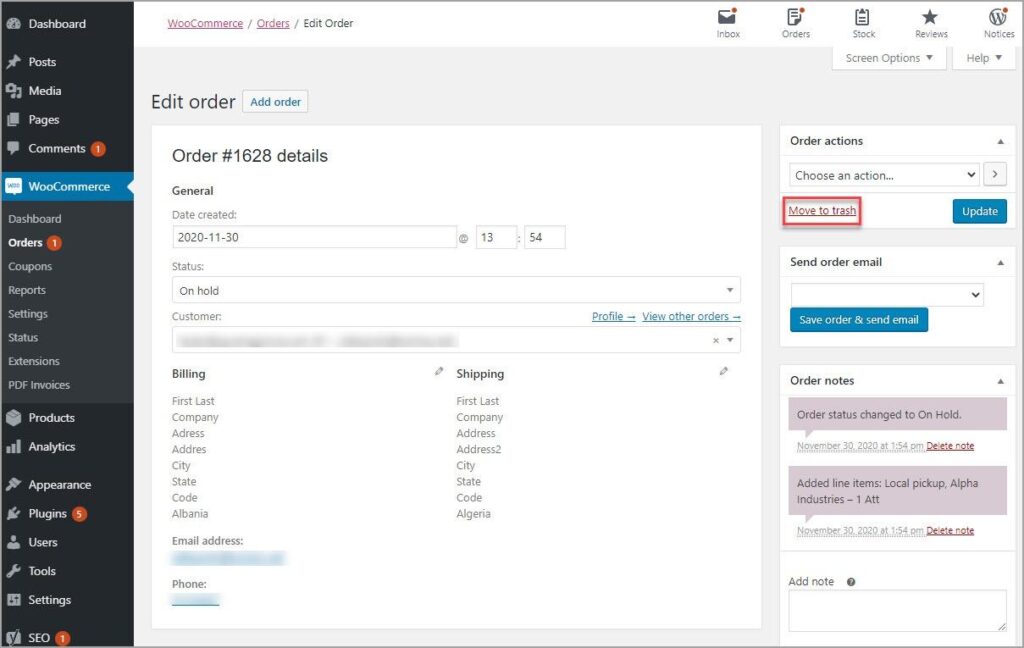
Simple, but obviously not practical once you’re dealing with hundreds of orders.
Method 2: A Faster, Safer Way to Bulk Delete Orders
If you want the speed of bulk deletion without the risk of raw SQL, the practical middle ground is a plugin built specifically for this something that lets you filter exactly what you want to remove, see it before you delete it, and back it up in one click.
This is exactly what Bulk Cleanup for WooCommerce is built for. Here’s what the process looks like:
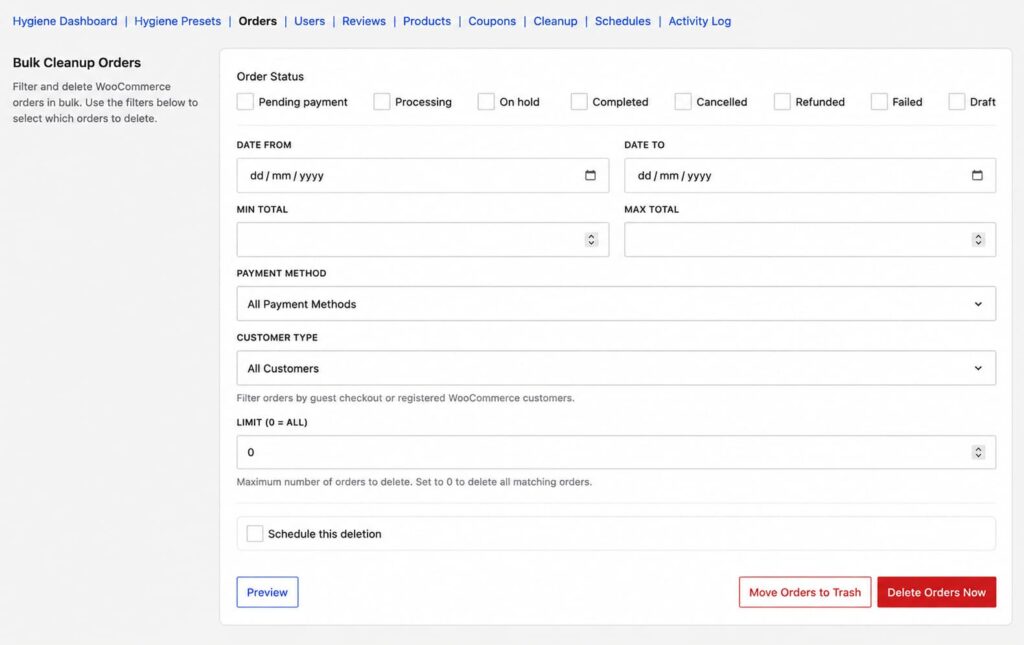
- Go to WooCommerce → Settings → Bulk Cleanup → Orders
- Filter by order status, date range, total amount, payment method, or guest vs. registered customer
- Click Preview to see exactly which orders match no guessing
- Optionally export a CSV backup of everything you’re about to delete
- Choose Move to Trash (reversible) or Delete Permanently
- Confirm, and check the result in the Activity Log
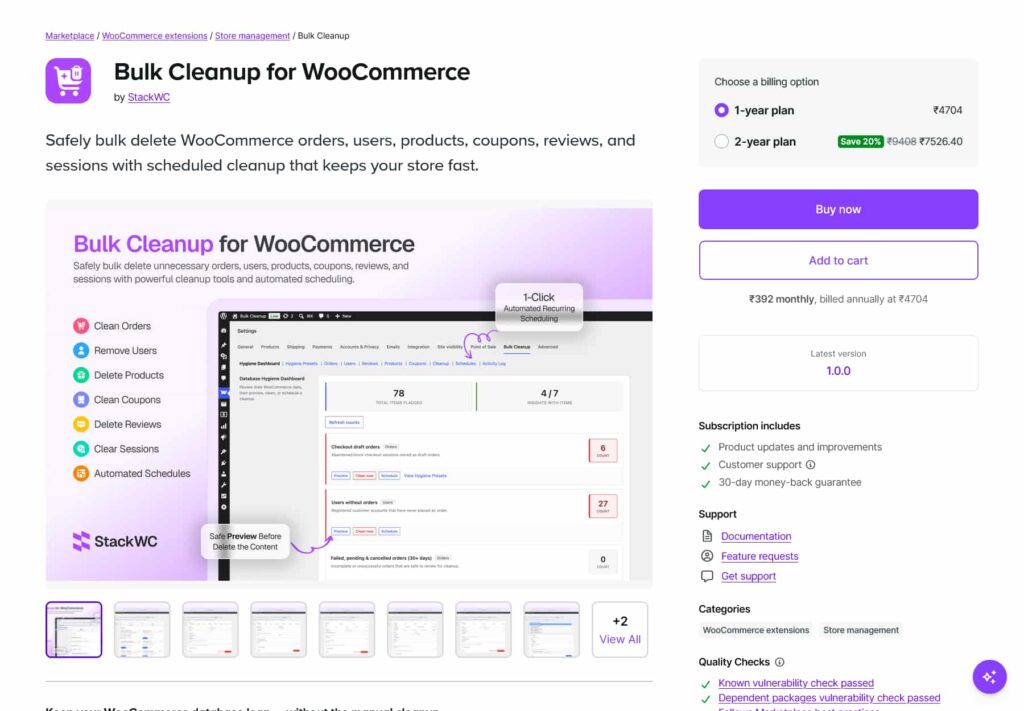
A few reasons this beats both the manual method and raw SQL:
- It’s HPOS compatible, so it works correctly whether your store uses legacy order storage or the newer HPOS tables
- Preview before delete means you’re never guessing what’s about to be removed
- CSV export gives you a backup you can restore from if you ever need the data again
- Batch processing handles large order lists without timing out or overloading your server
- Scheduling lets you set this up once for example, “move checkout-draft orders older than 7 days to trash, every week” and never think about it again
That last point matters if your store gets a steady trickle of abandoned checkouts and failed payments. Instead of doing a manual cleanup every few months, you can set it up as a recurring job and forget about it.
Method 3: Bulk Delete Using WooCommerce’s Built-In Bulk Actions
WooCommerce does let you select multiple orders at once:
- Go to WooCommerce → Orders
- Check the boxes next to the orders you want to remove
- Open the Bulk actions dropdown at the top
- Select Move to trash
- Click Apply
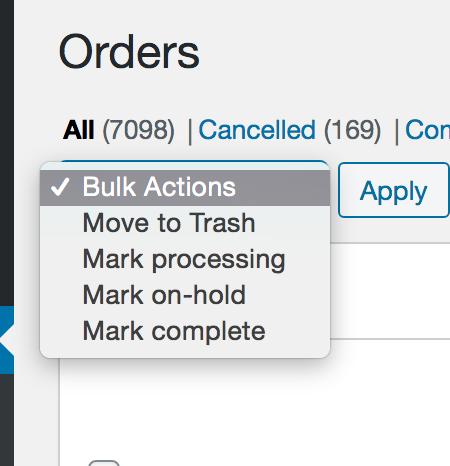
This is better, but it only works on the orders visible on the current page, and WooCommerce doesn’t give you a way to filter by things like order total, payment method, or “guest vs. registered customer” before you delete. You’re stuck picking through pages manually.
Method 4: The SQL Shortcut (And Why You Should Be Careful With It)
If you search around, you’ll find a common SQL snippet that moves every order to trash in one shot:
sql
UPDATE wp_posts SET post_status = ‘trash’ WHERE post_type = ‘shop_order’;
This runs through phpMyAdmin and can technically move thousands of orders to trash in seconds. But there are real problems with relying on this:
- No filtering. It’s all-or-nothing you can’t target just failed orders from 90 days ago, for example, without writing more complex SQL.
- No preview. You won’t know exactly what you’re about to affect until it’s done.
- HPOS compatibility. If your store uses High-Performance Order Storage (which is now the default for most WooCommerce sites), your orders aren’t stored in wp_posts at all anymore they live in dedicated wc_orders tables. Running the old wp_posts query on an HPOS store either does nothing or, worse, leaves your order data out of sync.
- No backup built in. One typo in a WHERE clause and you could wipe far more than intended, with no easy way to recover.
If you’re comfortable with SQL and you’re only doing a one-time cleanup on a non-HPOS store, this can work. But for anything recurring, or on a live store with real customer data, it’s a risky habit.
A Quick Word on Safety, No Matter Which Method You Use
Whichever route you take, follow the same basic rule: back up before you delete permanently.
- Take a full database backup before any bulk operation
- Prefer “Move to Trash” over permanent delete when you’re not 100% sure
- Export a CSV of what you’re removing if the tool supports it
- Test on a staging site first if you’re running raw SQL
Orders often connect to other data customer records, coupons used, refund history so it’s worth being a little cautious even when a tool makes deletion fast.
Final Thoughts
For a one-time cleanup of a handful of orders, WooCommerce’s native bulk actions are enough. For a larger, one-time wipe on a store you’re not too worried about, the SQL method works if you’re careful and your store isn’t on HPOS.
But if you’re maintaining a live store and want to keep your orders table clean on an ongoing basis without the risk of an unfiltered SQL query a dedicated tool that gives you filtering, previews, backups, and scheduling is the safer long-term choice. Bulk Cleanup for WooCommerce covers exactly this, along with the same kind of cleanup for users, products, coupons, and reviews.