
If your WooCommerce customer list is cluttered with accounts that never placed a single order, you’re not alone. Abandoned signups, spam registrations, and test accounts pile up over time and make your customer data harder to manage. The good news is that WooCommerce gives you a few safe, straightforward ways to clean this up without touching real customer records.
In this guide, you’ll learn exactly how to find and delete WooCommerce customers without orders, why it’s worth doing, and how to avoid accidentally removing accounts you actually need.
Table of Contents
Why Delete Customers Without Orders
Every WooCommerce store accumulates accounts that never convert. These usually come from:
- Visitors who registered but abandoned checkout
- Spam bots creating fake accounts
- Test accounts left over from store setup
- Customers who signed up for a newsletter or waitlist but never bought anything
Keeping these accounts around isn’t dangerous, but it does add clutter. A leaner customer list makes your reports more accurate, your email marketing lists cleaner, and your database a bit lighter. If registration spam has been a recurring problem for your store, it’s worth pairing this cleanup with stronger signup protections our guide on stopping WooCommerce registration spam covers several practical fixes.
Before You Start: Back Up Your Site
Deleting user accounts is not reversible from the WordPress dashboard, so a backup is non-negotiable here. Even though customers without orders are generally low-risk to remove, mistakes happen a customer could have a draft order, a pending payment, or account activity you didn’t notice.
Take a full backup of your site and database using your hosting provider’s backup tool or a backup plugin before making any changes. This one step turns a risky cleanup into a safe one.
Method 1: Delete Customers Manually from the WordPress Users Screen
This method works well if you only have a handful of accounts to remove.
Step 1: Go to the Users Screen
From your WordPress dashboard, navigate to Users → All Users.
Step 2: Identify Customers with No Orders
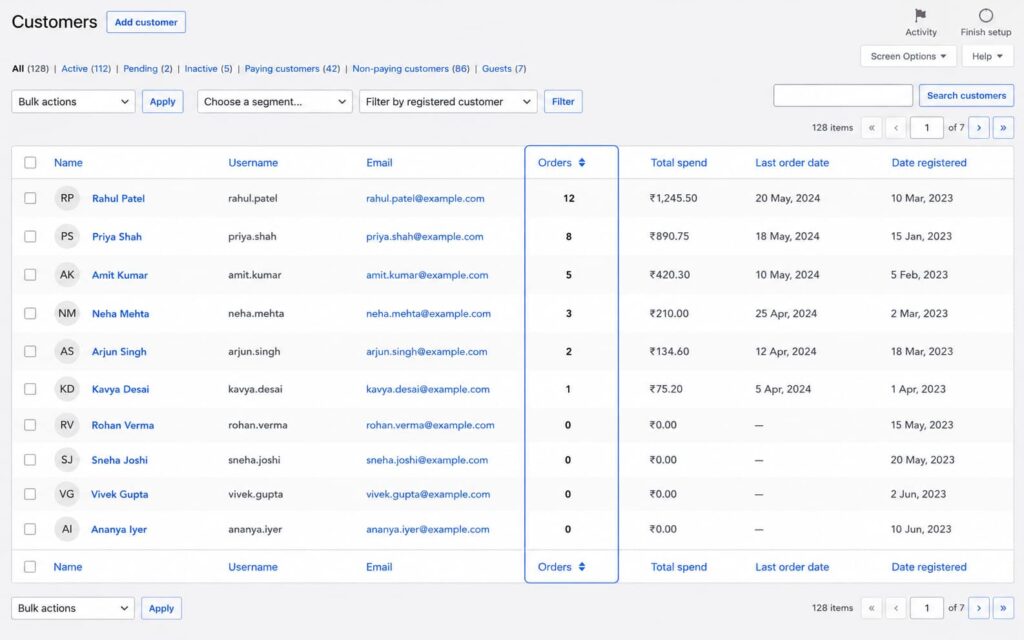
WooCommerce doesn’t show order counts directly on this screen by default, so you’ll need to cross-check. Go to WooCommerce → Customers instead, where each customer row displays their total number of orders. Sort or scan through the list and note which accounts show zero orders.
Step 3: Delete the Accounts
Head back to Users → All Users, check the box next to each customer you’ve confirmed has no orders, select Delete from the Bulk Actions dropdown, and click Apply.
WordPress will ask whether to delete the user’s content or attribute it to another user. Since these accounts have no orders or posts, you can safely choose to delete all content associated with them.
Method 2: Bulk Delete Customers Without Orders in One Click
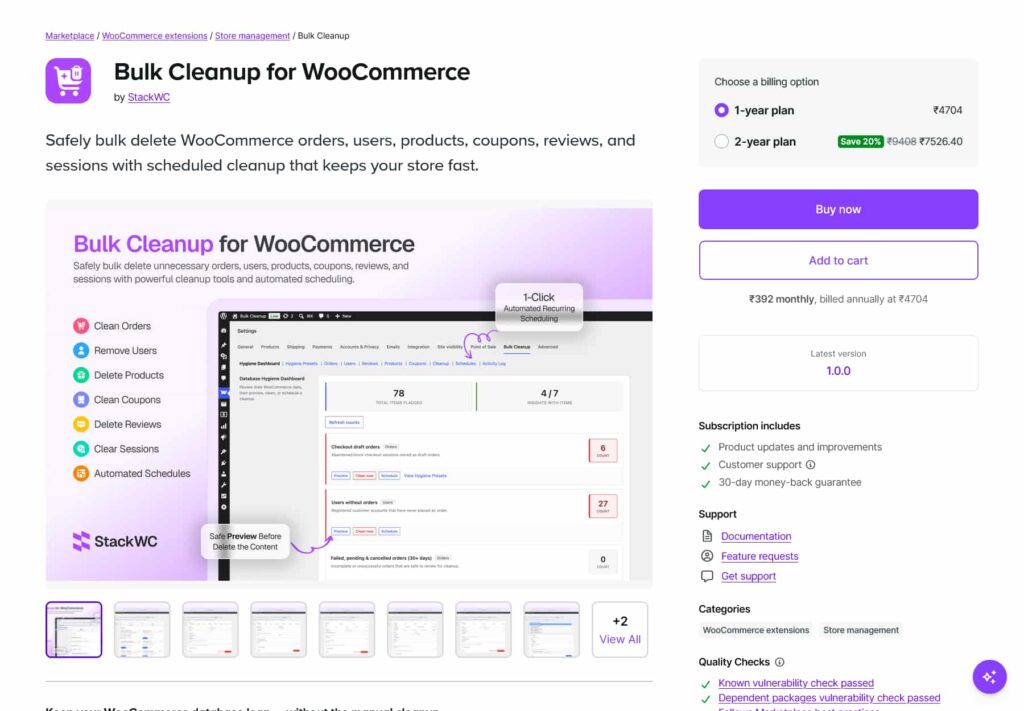
Manual checks work for a one-time cleanup, but if your store regularly attracts order-less signups, a dedicated cleanup plugin saves you from repeating Methods 1 and 2 every few months. Bulk Cleanup for WooCommerce is built specifically for this kind of database maintenance and includes a dedicated tool for removing customers who’ve never placed an order.
Step 1: Install and Open the Plugin
After installing and activating the plugin, go to WooCommerce → Settings → Bulk Cleanup. The Hygiene Dashboard gives you a live count of items worth cleaning up across your store, including a specific count for users without orders.
Step 2: Filter Customers by Order Count
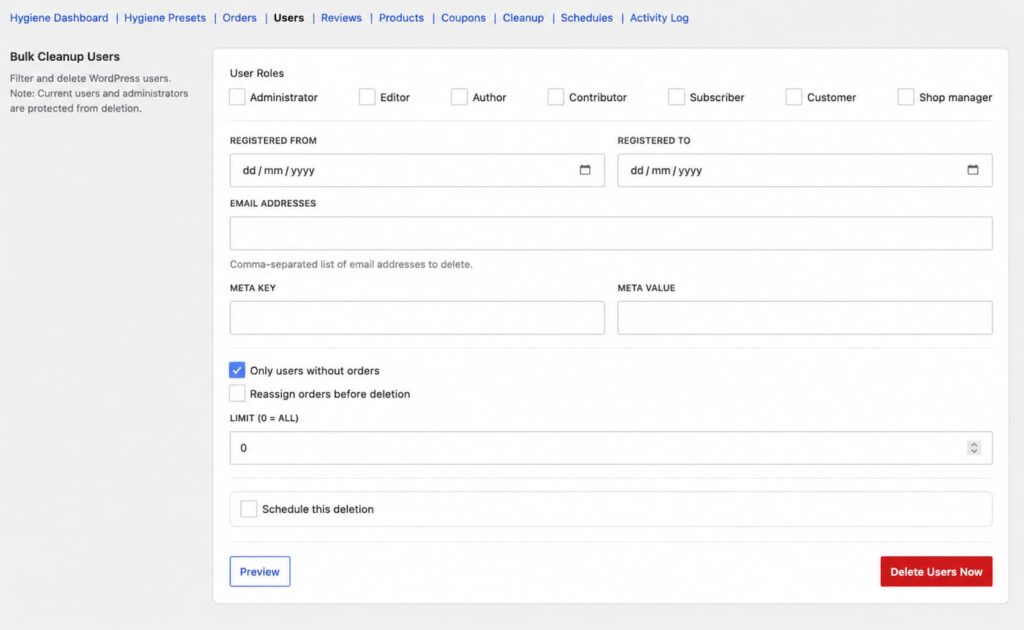
Open the Users tab and enable the Only users without orders filter. You can further narrow the results by user role, registration date range, or email address if you want to exclude specific accounts, such as staff logins or wholesale customers who haven’t ordered yet.
Step 3: Preview Before Deleting
Click Preview to see the exact list of accounts that match your filters before anything is removed. This step matters because it lets you double-check the results against what you expect, rather than deleting blind, same as manually checking order counts before deleting in Method 1. You can also export the list as a CSV for your records before proceeding.
Step 4: Delete or Schedule the Cleanup
From here, you can either delete the matching accounts immediately or set up a recurring schedule (weekly, monthly, or another interval) so order-less accounts are cleaned up automatically going forward. Every deletion is recorded in the plugin’s Activity Log, and your own administrator account is always protected from being deleted by mistake.
This approach is especially useful for stores with a large, ongoing volume of signups, or for agencies managing cleanup across multiple client sites where doing this manually every month isn’t realistic.
What Happens to Deleted Customer Accounts
When you delete a WordPress user, their login access is removed immediately and their user record is gone from the database. If the account genuinely has no orders, there’s no order history, invoice, or purchase record to worry about losing.
However, keep in mind:
- Any comments, reviews, or wishlist entries tied to that account may also be deleted, depending on your settings
- Email marketing integrations that sync with WooCommerce customer data should be checked separately, since some tools cache customer lists independently
- If a guest checkout order exists under the same email address but wasn’t linked to the account, that order data stays intact in WooCommerce → Orders, since guest orders aren’t stored as user accounts
Tips to Prevent Future Order-Less Signups
Cleaning up existing accounts is only half the job. A few adjustments can reduce how many order-less accounts accumulate going forward:
- Enable CAPTCHA or honeypot fields on your registration and checkout forms to cut down on bot signups
- Consider making account creation optional at checkout instead of mandatory, which reduces friction and abandoned registrations
- Review your checkout flow periodically our guide on editing the WooCommerce checkout page walks through adjusting fields and steps to reduce drop-off
- Follow up with abandoned carts using automated emails, which can convert some of these order-less signups into real customers rather than accounts you’ll eventually delete. Our post on sending abandoned cart emails in WooCommerce is a good starting point
Frequently Asked Questions
Does deleting a customer account also delete their orders?
No. If a customer has actual orders, deleting their user account in WordPress will prompt you to either reassign or delete associated content, but order records in WooCommerce are generally preserved as separate entries. This guide specifically covers customers with zero orders to avoid this complexity altogether.
Can I recover a deleted customer account?
Not through the WordPress dashboard. Once deleted, an account is gone unless you restore it from a backup taken before the deletion, which is why backing up first is essential.
Is it safe to delete customers who registered recently?
Use caution here. A recent signup may still be actively shopping or considering a purchase. It’s safer to wait a reasonable window (30–60 days is common) before treating a recent registration as order-less and eligible for cleanup.
Will deleting inactive customers affect my SEO or site performance?
Indirectly, yes. A smaller, cleaner user database can slightly improve backend performance and query speed, though the effect is usually minor unless you’re dealing with thousands of unused accounts. It has no direct impact on SEO.
What’s the difference between the Users screen and the WooCommerce Customers screen?
The Users screen shows every WordPress user regardless of role, while the WooCommerce Customers screen is specific to store customer data and includes order count and total spend, making it the better starting point for this kind of cleanup.
Conclusion
Removing WooCommerce customers without orders is a simple but valuable piece of store maintenance. Whether you handle it manually through the Users and Customers screens or set up an automated cleanup routine with a plugin, the key steps stay the same: back up first, confirm zero order history, and double-check account roles before deleting anything in bulk.
Pair this cleanup with a few preventive steps like tightening registration spam controls and streamlining your checkout and you’ll spend a lot less time doing this kind of housekeeping in the future.