
If you’ve ever spent time building a WordPress navigation menu only to realise you need a near-identical one somewhere else on your site, you already know how frustrating it is to start from scratch. The good news: you can duplicate a menu in WordPress in just a few steps, no advanced skills needed.
In this tutorial, you’ll learn two reliable methods one using the native WordPress menu editor (no plugin required), and one using the free ClonePress plugin for a single-click approach that also copies the full nested structure.
Table of Contents
Why Duplicate a WordPress Menu?
There are more situations than you might think where cloning a menu saves real time:
- You need a header menu and a footer menu that share most of the same links.
- You’re redesigning your site and want to preserve the current menu before making changes.
- You’re setting up a staging environment and need to replicate the live menu structure.
- You want to test a new menu layout without touching the live one.
WordPress doesn’t include a native “duplicate menu” button, but both methods below get the job done cleanly. If you’re also managing content duplication across posts and pages, the Best WordPress Duplicate Post Plugins roundup on Tutsflow is worth a read.
Method 1: Manually Copy a Menu Using the WordPress Menu Editor
This method works with no extra plugins. It takes a few more minutes but gives you complete control.
Step 1: Review Your Existing Menu
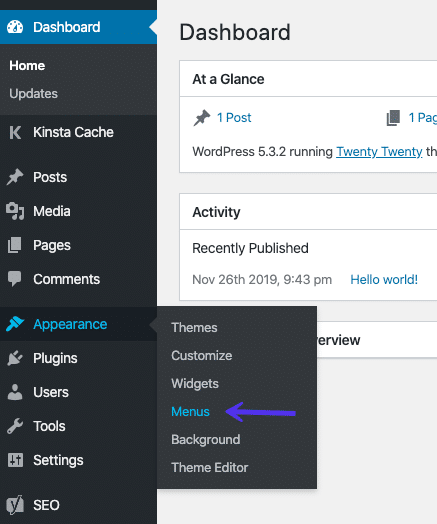
Go to Appearance → Menus in your WordPress dashboard. Select the menu you want to copy and take note of all the items it contains pages, posts, custom links, categories and how they’re ordered or nested.
Step 2: Create a New Menu
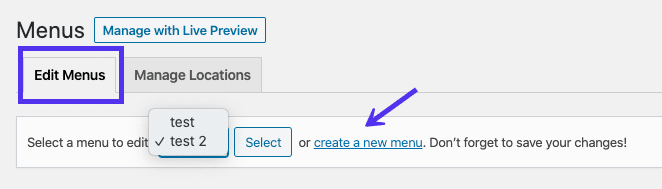
Click “Create a new menu” at the top of the page. Give it a clear name for example, if the original is “Main Menu”, you might call the copy “Footer Menu” or “Main Menu – Copy”.
Step 3: Add the Same Items
Now rebuild the menu by adding the same items from the left-hand panels:
- Pages and Posts tick the items you need and click Add to Menu.
- Custom Links enter the URL and link text, then click Add to Menu.
- Categories select the relevant ones and add them the same way.
Step 4: Recreate the Structure
Drag and drop items to match the order and nesting of your original. To create a dropdown sub-item, drag it slightly to the right beneath its parent item.
Step 5: Save the Menu
Click Save Menu when everything looks right. Your duplicated menu is ready to assign to a location.
Method 2: Duplicate a Menu in One Click Using ClonePress
For larger menus or anyone who duplicates content regularly, the manual approach gets tedious fast. ClonePress is a free, lightweight plugin that duplicates WordPress menus including the full nested structure with a single click. It also handles posts, pages, and custom post types, making it a genuinely useful all-round tool to have installed.
Step 1: Install and Activate ClonePress
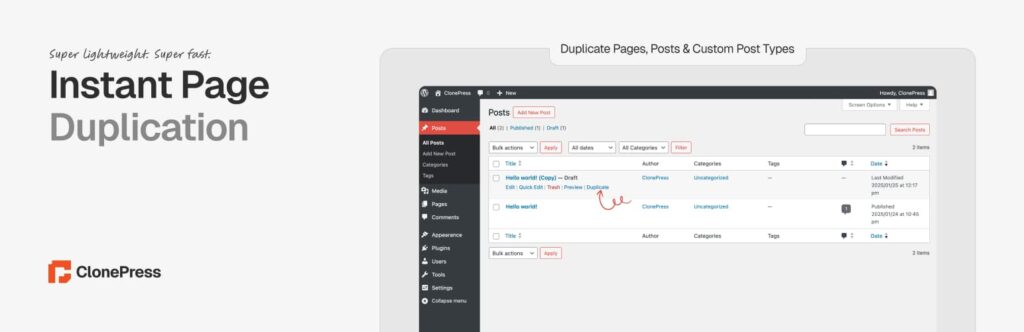
Go to Plugins → Add New in your dashboard and search for ClonePress. Install and activate it. You can also find it at wordpress.org/plugins/clonepress.
Not familiar with installing plugins? Here’s a quick guide: How to Install a WordPress Plugin in 3 Easy Ways.
Step 2: Open the Menu You Want to Duplicate
Navigate to Appearance → Menus. From the dropdown at the top, select the menu you want to copy and click Select.
Image alt text suggestion: WordPress Menus screen with a navigation menu selected in the dropdown selector
Step 3: Click “Duplicate Menu”
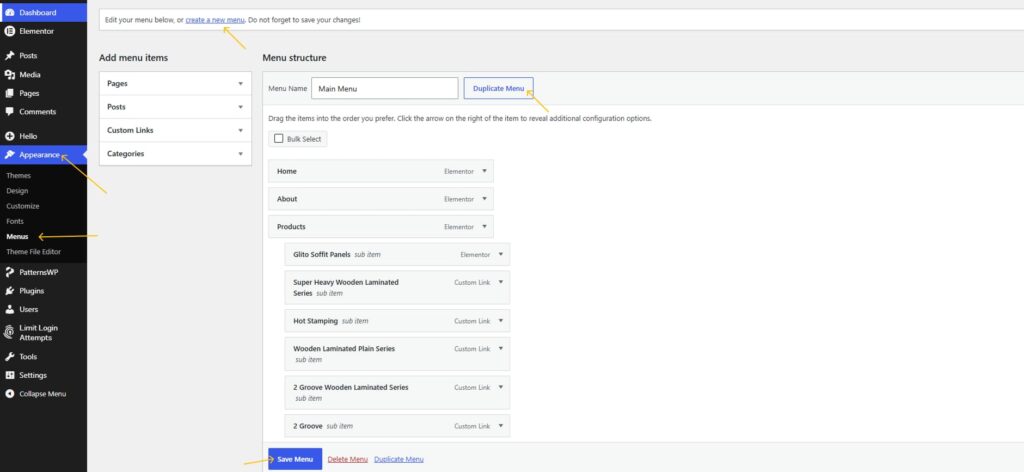
With ClonePress active, you’ll see a Duplicate Menu button on the menu editing screen. Click it — ClonePress will instantly create an exact copy of the menu, including all items and their nested hierarchy, saved under the name “Copy of [Original Menu Name]”.
Step 4: Rename and Adjust
Your duplicated menu now appears in the menu list. Open it, rename it to something meaningful, make any edits you need, and click Save Menu.
That’s it what would have taken several minutes manually is done in seconds.
How to Assign Your Duplicated Menu to a Display Location
Duplicating a menu doesn’t automatically display it anywhere on your site. You need to assign it to a theme location.
- Go to Appearance → Menus and open the duplicated menu.
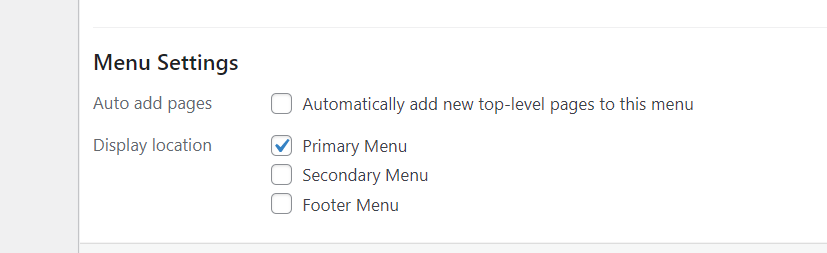
- Scroll down to Menu Settings at the bottom of the page.
- Under Display location, tick the location where you want the menu to appear (e.g., Primary Menu, Footer Menu, Mobile Navigation).
- Click Save Menu.
The locations available depend on your active theme. Most themes offer at least a primary and footer location. If you’re building with the block editor, the process is slightly different you’d manage navigation through the Navigation block in the Site Editor instead.
Tips for Managing Multiple Menus in WordPress
Once you have more than one menu running, a bit of organisation goes a long way:
- Name menus clearly. “Header – Main Nav” and “Footer – Quick Links” are much easier to work with than “Menu 1” and “Menu 2”.
- Delete unused menus. After duplicating and testing, remove any temporary copies you no longer need.
- Always test on mobile. Dropdown structures especially can behave differently on smaller screens.
- Back up before making big changes. If you’re restructuring your navigation, it’s worth having a safety net. The 5 Best WordPress Backup Plugins are a good place to start.
- Keep consistent structure across locations. If your header and footer menus share items, try to keep the link text consistent to avoid confusing visitors.
If you’re also working with reusable layout components in the block editor, How to Use WordPress Block Patterns to Improve SEO, Performance, and Page Speed covers a related area that’s worth exploring.
FAQ
Can I duplicate a WordPress menu without a plugin?
Yes. The manual method creating a new menu and adding the same items works well for smaller menus with no extra plugins needed.
Does ClonePress copy the nested/dropdown structure of a menu?
Yes. When you click Duplicate Menu in ClonePress, it copies all menu items and preserves their full hierarchy, including any nested sub-items.
Will the duplicated menu appear on my site automatically?
No. After duplicating, you need to assign the new menu to a display location under Menu Settings → Display location. It won’t show on the frontend until you do this.
What else can ClonePress duplicate beyond menus?
ClonePress also duplicates posts, pages, and custom post types with one click. It supports multiple post statuses (draft, published, private, pending review), bulk duplication, and role-based permission controls.
Does this work with block themes and the Full Site Editor?
The Appearance → Menus screen (and ClonePress’s menu duplication feature) applies to classic themes. Block themes manage navigation through the Navigation block in the Site Editor, which works differently.
Can I copy menus between two separate WordPress sites?
Not directly with ClonePress. It works within a single WordPress installation. To move menus between sites, you’d need a migration or import/export plugin.
Conclusion
Duplicating a menu in WordPress doesn’t have to be a chore. The manual method is reliable for simple menus and needs no extra tools. For anything more complex or if you regularly manage multiple menus ClonePress makes the job instant and accurate, copying even deeply nested structures in one click.
Whichever method you go with, remember to assign the new menu to a display location and test it on both desktop and mobile before calling it done.
For more practical WordPress how-tos, check out How to Disable Comments in WordPress or browse the full WordPress Tutorials section